Panoramica dell'estensione per Chrome Bulk Image Downloader: come utilizzarla per i download in batch

Downloading images one by one from a website can quickly become tedious, especially when you need to save dozens or even hundreds of pictures. While Chrome’s built-in Save Image As option works well for individual files, it is not designed for large-scale image collection.

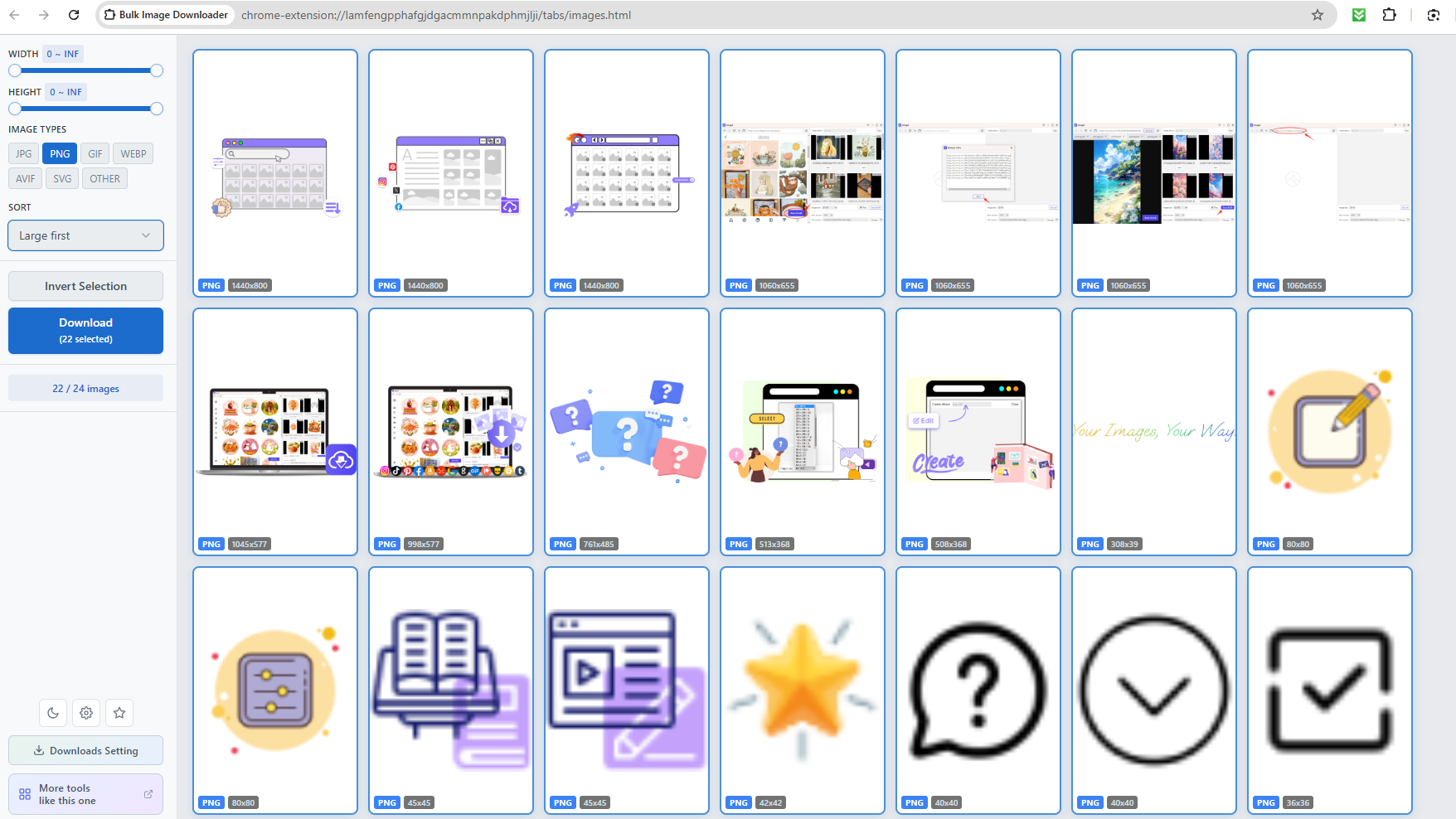
The Bulk Image Downloader Chrome Extension provides a more convenient way to collect images from one or multiple browser tabs. It can preview images, filter them by size and type, and download selected images in batches. It also supports right-click downloads and several tab-range options, making it useful for users who frequently work with online images.

In this guide, we’ll explain what Bulk Image Downloader is, how to use its main download methods, as well as compare its advantages and limitations.

1. What Is Bulk Image Downloader Chrome Extension?

Downloader di immagini in blocco is a Chrome extension designed to download multiple images from websites. According to its Chrome Web Store listing, it can download images from the current page or multiple browser tabs and lets users filter images based on characteristics such as width, height, and file type.

The extension supports common image formats as well as modern formats including AVIF, WebP, and SVG . It can also recognize data-URI images generated by some AI image tools. Before downloading, users can preview detected images and select which ones they want to save.

One of its most useful features is multi-tab downloading. Instead of processing every webpage separately, you can choose to download images from the current tab, all open tabs, or tabs located to the left or right of the current tab.

2. How to Use Bulk Image Downloader?

Using the extension is relatively straightforward. Here are the main ways to download images with it.

Passaggio 1: installare l'estensione

First, open the Downloader di immagini in blocco page in the Chrome Web Store and click Aggiungi a Chrome . After installation, you can access the extension from Chrome’s extensions menu.

For frequent use, you can pin the extension to the Chrome toolbar. This makes it easier to open whenever you need to download images.
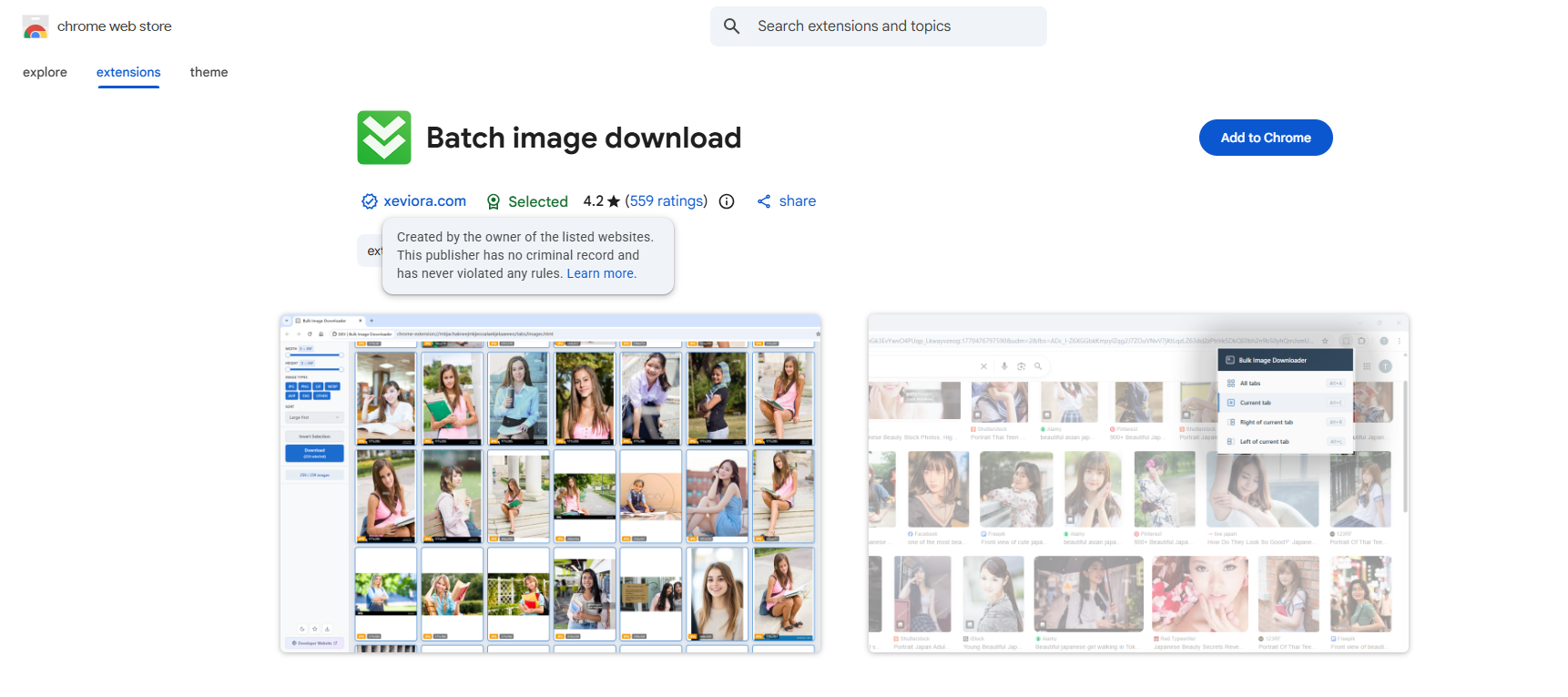
install bulk image downloader extension in chrome

Step 2: Download Images from Different Tabs

Bulk Image Downloader makes it easy to collect images from multiple Chrome tabs:

  • Current Tab: Downloads images detected on the webpage you are currently viewing.
  • All Tabs: Scans and downloads images from all open tabs at once.
  • Right of Current Tab: Downloads images from tabs positioned to the right of the active tab.
  • Left of Current Tab: Downloads images from tabs positioned to the left of the active tab.

bulk image downloader choose download from tab

These options are especially useful when you have several image-heavy pages open and want to process them in batches instead of downloading images individually.

Step 3: Select Images and Download

After selecting tab(s), the extension will open a tab that shows all detected images.

You can use its filters to narrow results according to width, height, and file type , and you can sort results based on factors such as resolution or tab order.

After making your selections, click Scaricamento . The selected images are saved to Chrome’s default download directory.

bulk image downloader select images and download

This preview-and-select workflow is helpful for avoiding unwanted icons, thumbnails, logos, and other small images that may also be detected on a webpage.

Step 4: Right-Click an Image and Download It

You don’t always need to open the extension interface.

When you find a single image you want to save, right-click it and look for the Bulk Image Downloader icon in Chrome’s context menu. Click Save Image to Downloads… to save the image directly to your Downloads folder.

bulk image downloader right click to download image

This is convenient when you only need to grab an occasional image but want something faster than opening additional menus.

3. Pros and Cons of Bulk Image Downloader Chrome Extension

Before choosing the extension as your primary image downloader, it is worth considering both its strengths and limitations.

Professionisti:

  • Facile da installare e da usare
  • Supports batch image downloads
  • Can download from multiple tabs
  • Offers image preview and filtering
  • Supports common and modern image formats

Contro:

  • Requires Chrome
  • Less suitable for very large image collections
  • Funzionalità limitate per l'organizzazione dei file.
  • Compatibility may vary across websites

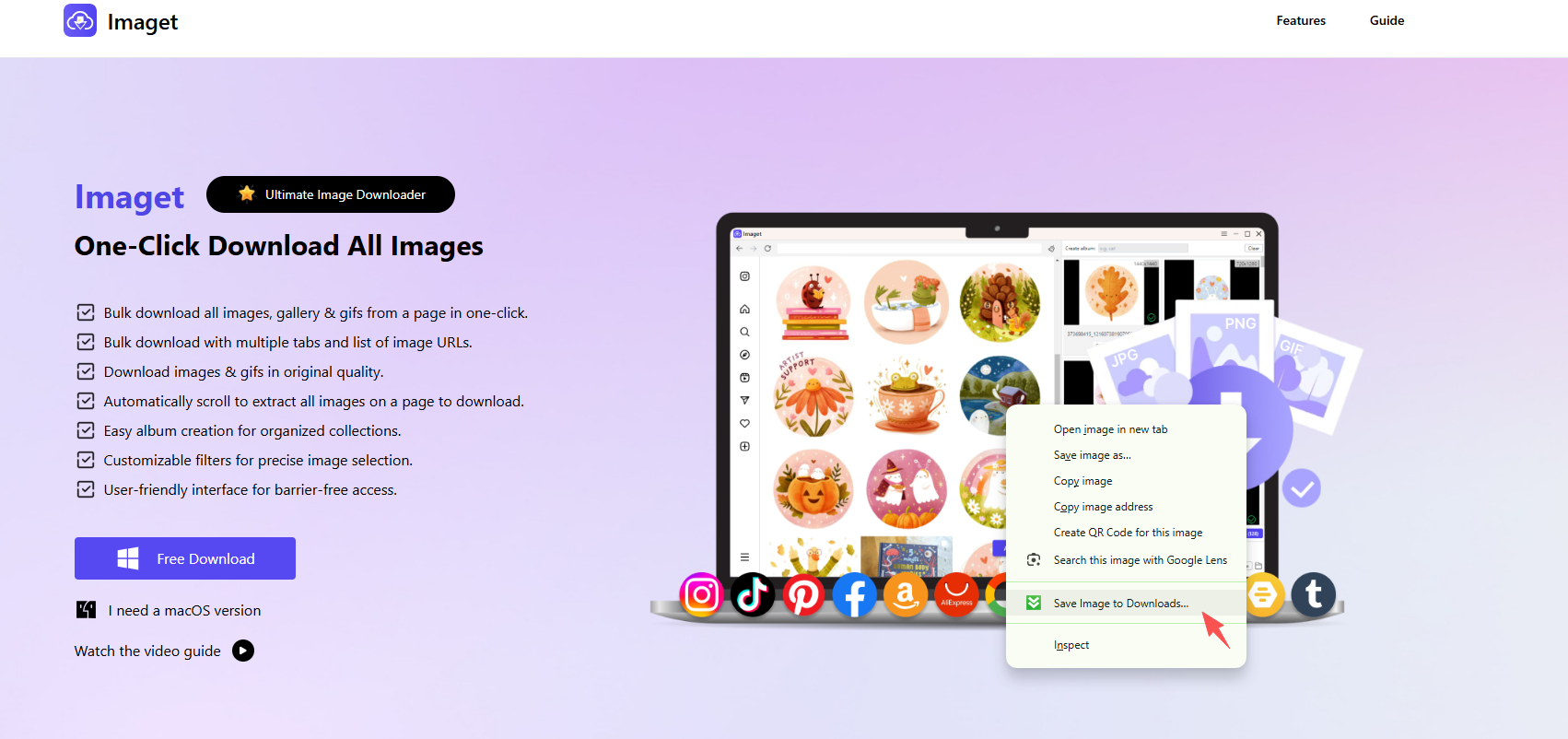
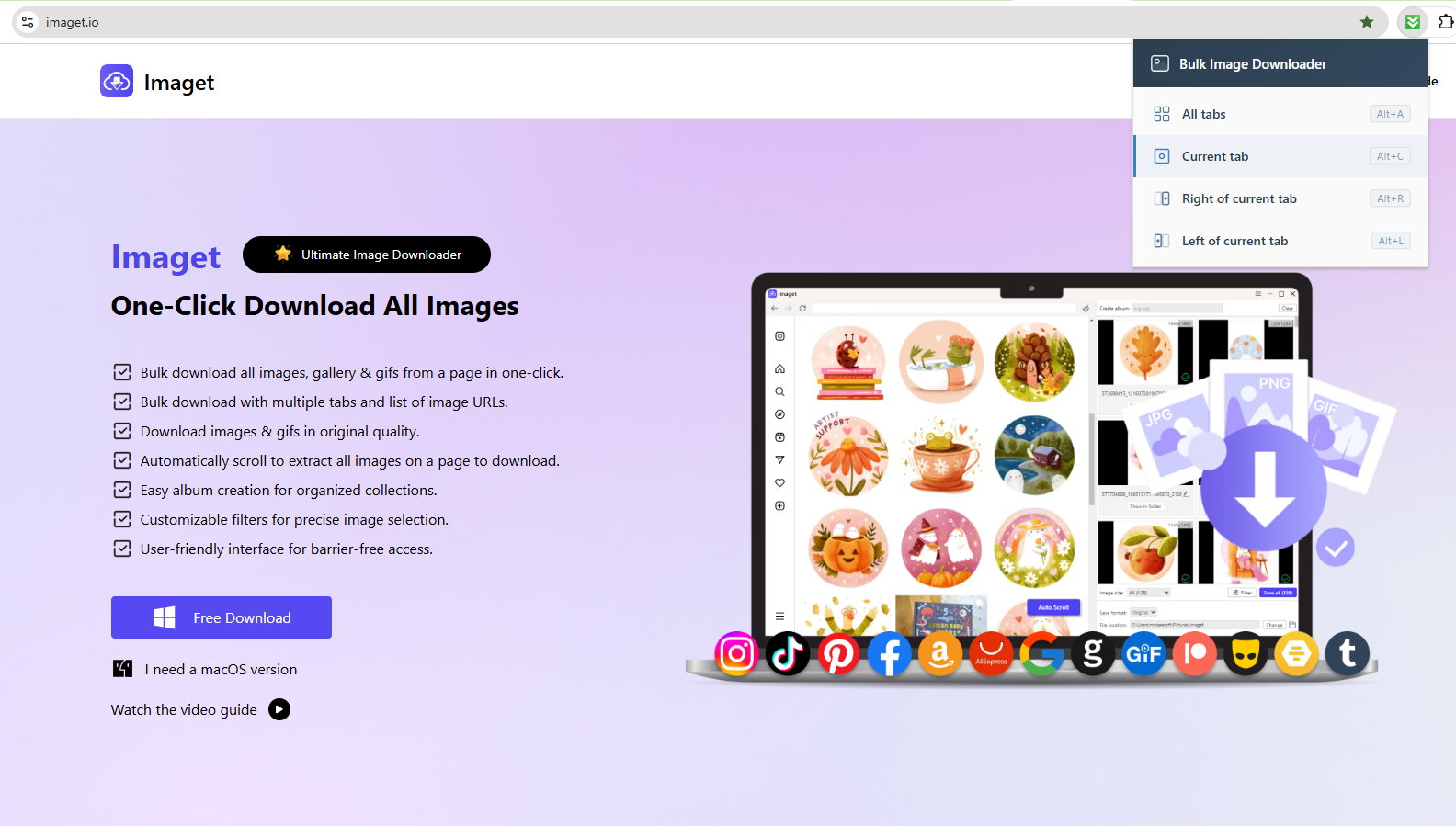
4. Try the Ultimate Image Downloader – Imaget

For users who regularly download large numbers of images, a dedicated desktop application can offer a more complete workflow. Imaget is designed specifically for bulk image downloading and can be a stronger alternative when you need to manage larger collections.

Unlike a Chrome extension that operates inside the browser, Imaget provides a dedicated interface for detecting, filtering, and downloading images. It is particularly useful when your goal is to collect many images efficiently rather than occasionally save a few pictures.

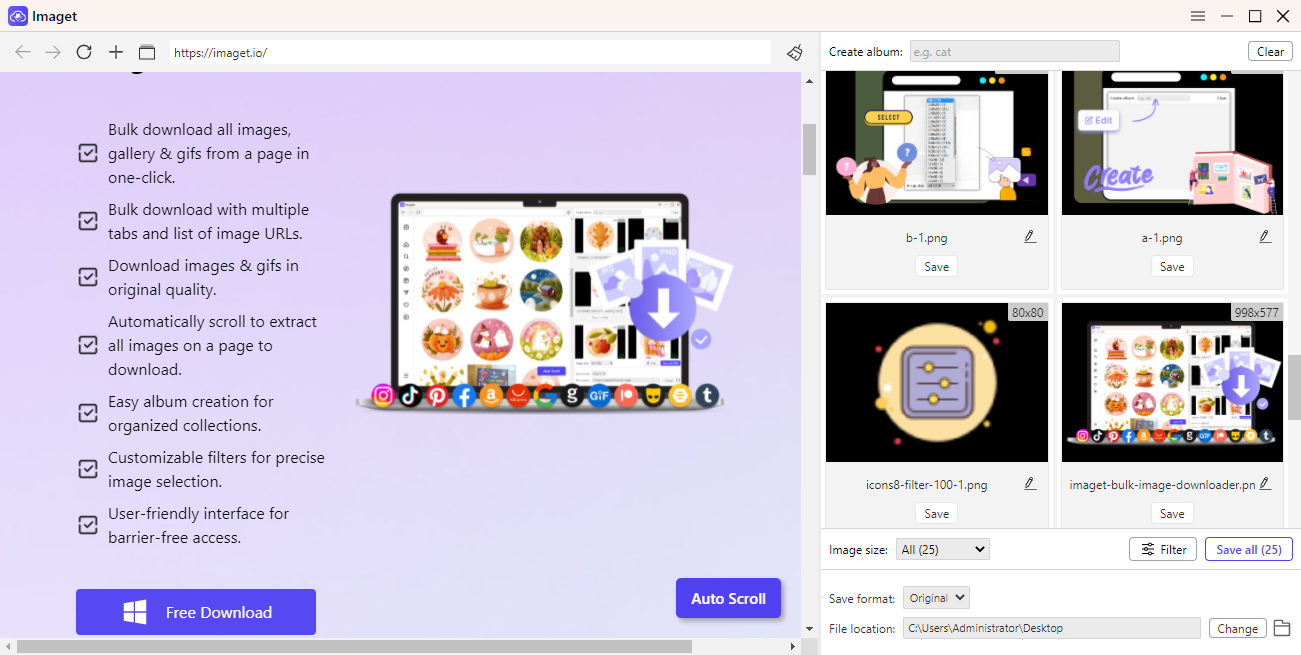
Con Imaget , you can download images in bulk with these steps:

  • Installa e avvia Imaget sul tuo computer ( Mac O Windows ).
  • Open the webpage(s) or enter the image-page URL(s) you want to process, then let Imaget scan and detect available images.
  • Filter or select the images you want to download.
  • Choose your download location and start the batch download.

immagini sito web di rip

5. conclusione

The Bulk Image Downloader Chrome Extension is a useful option for quickly downloading multiple images from webpages. Its current feature set includes multi-tab downloading, image previews, filtering, modern image-format support, right-click downloads, and keyboard shortcuts.

For occasional batch downloads directly from Chrome, it can be a convenient solution. However, users who regularly download large image collections may prefer a dedicated tool with a more comprehensive desktop workflow.

Imaget is worth considering if you want a more powerful solution for bulk image downloading. With its dedicated interface and batch-oriented workflow, it can make large-scale image collection faster and easier to manage. For users who frequently need to download images from multiple webpages, Imaget is a strong alternative to a Chrome-based bulk image downloader.